Students Register
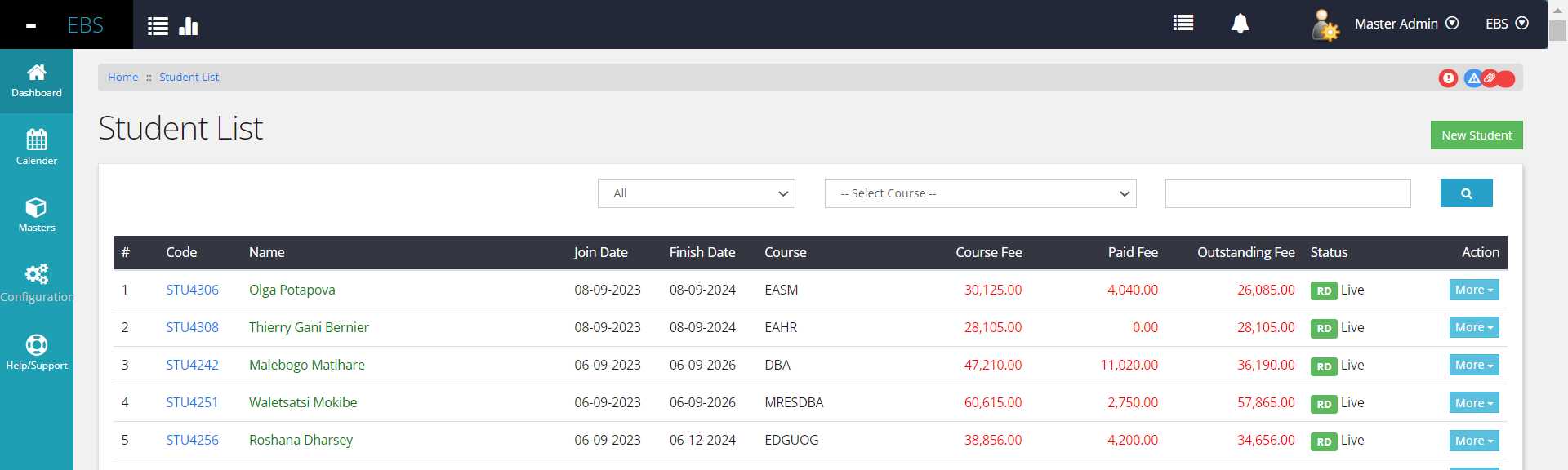
Accessing the Students Listing page is possible by selecting the 'General' menu followed by the 'Student' link. The grid on this page displays fundamental student information, including fee structures, outstanding fees, and student status.The 'More' dropdown menu offers additional functionalities, allowing users to view details, edit basic information, or delete a student profile.
A button positioned at the top right corner facilitates the creation of a new student. However, it's important to note that all student listings are initially created in the Learning Management System (LMS) and subsequently imported into the ERP system at specific intervals through a defined import process.
Students Detail View
Clicking on a Student Code directs users to a comprehensive view of the student's profile. This detailed view includes the student's payment history, other financial information, and a complete record of all related transactions associated with the student's account.
General Tab
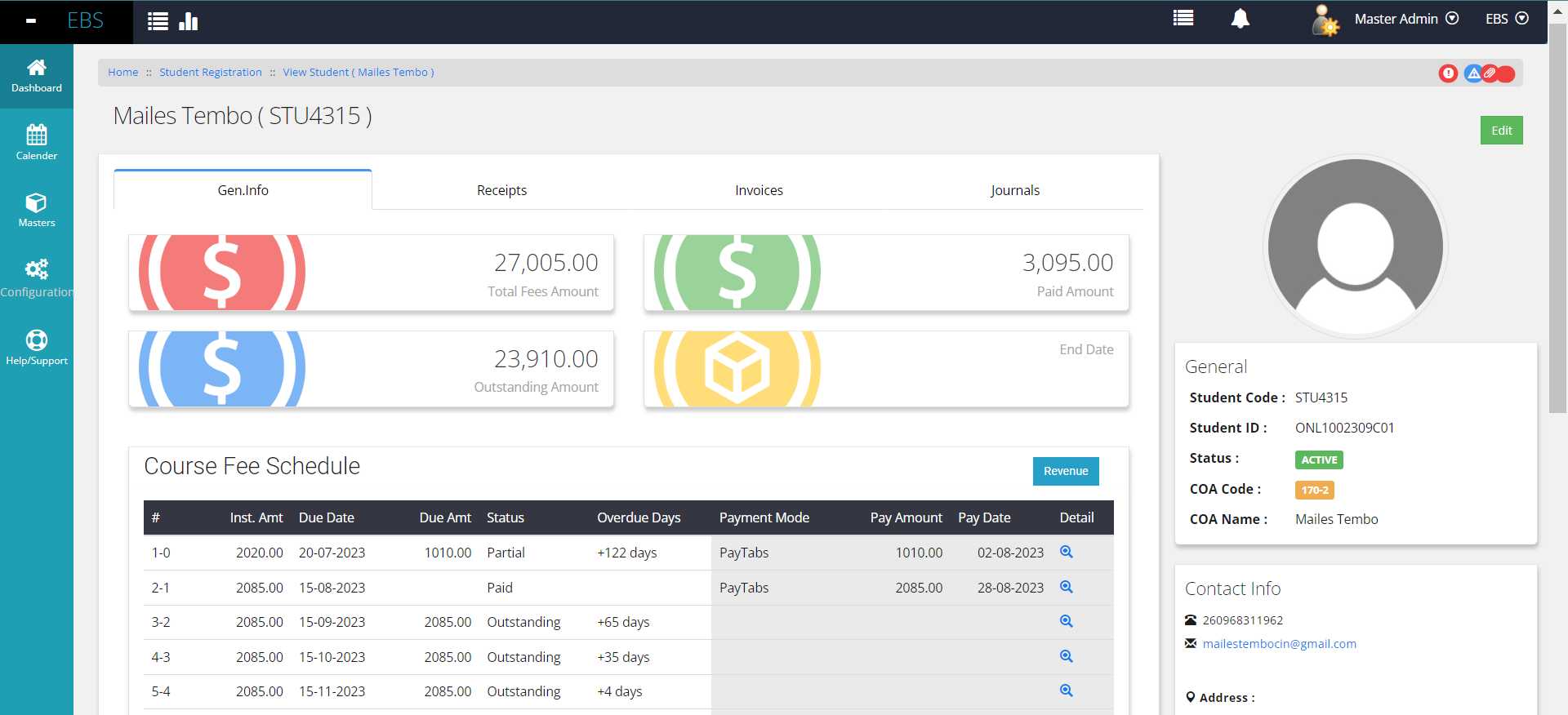
The landing tab for the student detail section prominently displays key information at the top section. This includes essential details such as the Total Fee Amount, Paid Amount, Outstanding Fee, and the Course Ending Date.
Below these key details, the "Course Fee Schedules" are comprehensively listed. Each schedule item includes details such as the Instalment Number, Amount, Due Date, Due Amount, Instalment Status, Overdue Days (if any), Payment Mode (if payment is made), Paid Amount, and Payment Date. Additionally, a detailed view icon, located at the right end of each transaction row, triggers a pop-up window displaying the detailed information of the specific paid transaction upon selection.

Reveneu Breakup
Above the Course Fee Schedules grid, there's a dedicated 'Revenue' button designed to provide a detailed breakdown of the student's revenue. Clicking this button opens a popup displaying the payment breakup according to the financial revenue booking.
It's important to note that the revenue breakup might differ from the allocated instalments for the student. The revenue breakdown is primarily based on the course the student has enrolled in. A standard revenue booking is generated for each course based on its duration and fee structure, offering a comprehensive view of the financial aspects associated with the student's enrollment.
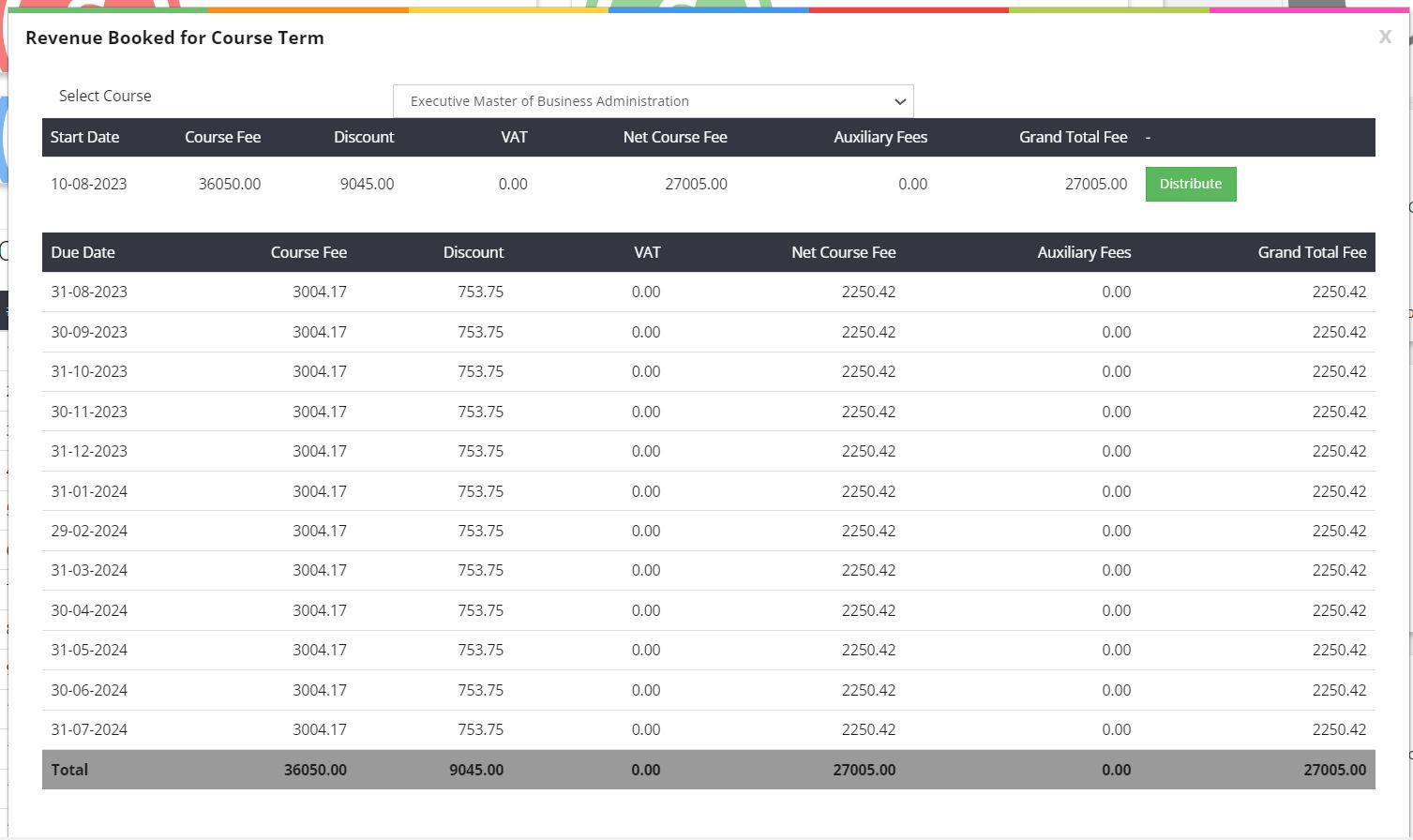
A 'Distribute Revenue' button is available to manually distribute revenue if it hasn't been automatically processed. Typically, revenue distribution occurs automatically during the student import process. However, this button serves as a manual option, allowing users to redistribute revenue if needed, especially after any updates or modifications in the fee structure.
Receipts Tab
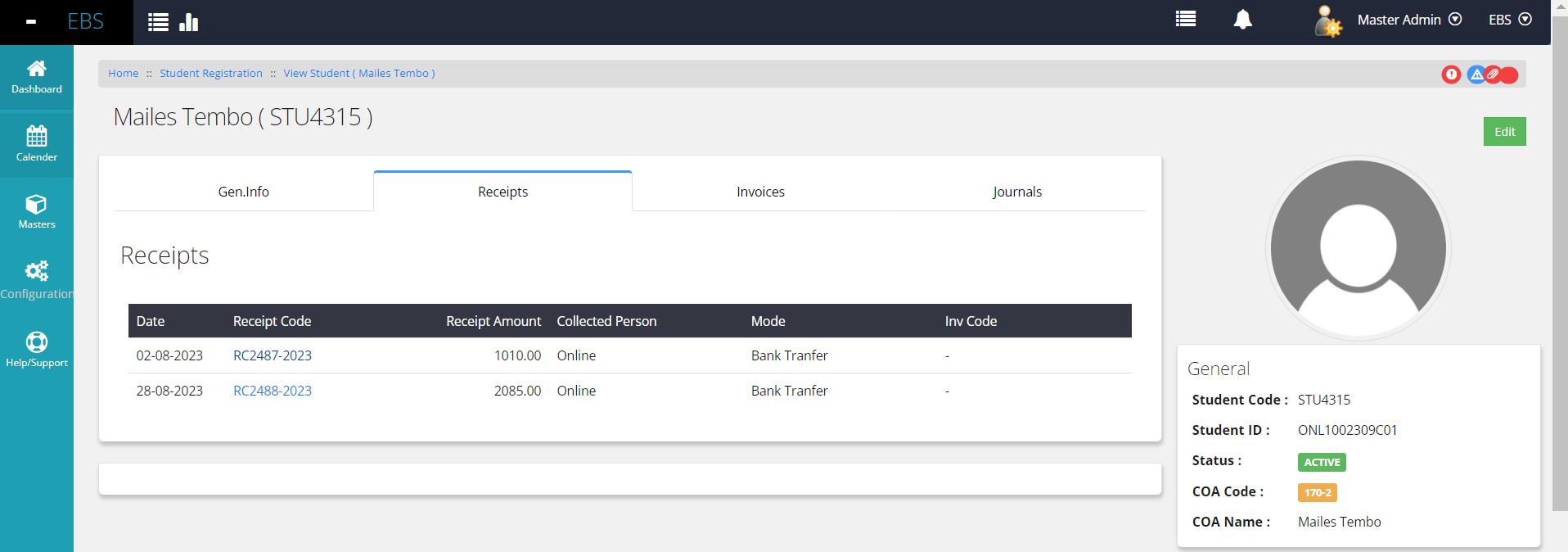
Under this tab all the receipts booked on ERP will be listed with clickable link which leads to the Receipts module to view detais. This Tab is loaded with basic receipt details like Date, amount, mode of payment etc
Invoice / Fee Bills Tab
This tab comprises a comprehensive list of all booked sales invoices or fee bills raised against the student. Invoices are generated either upon receiving instalment payments or during the monthly end revenue generation process.
Invoices generated against payments are directly allocated with receipts during their generation. Conversely, invoices generated during the revenue booking process can be linked with payments upon generation. Accountants have the flexibility to manually allocate these invoices against receipts to ensure accurate aging reports and maintain proper accounting records.
The Invoices grid is populated with fundamental key details such as the Invoice date, Fee, any applicable discounts, document type, and the current status of the document. This grid provides a concise overview of essential information associated with each invoice.
Clicking on the Invoice code navigates users to the respective invoice document, offering a detailed reference if required. This functionality enables users to access and review the complete invoice document for comprehensive information and better reference purposes.

Journal Tab
This tab displays a list of Journal entries recorded against the student. These entries typically occur for adjustments such as returns or fee adjustments. Additionally, there's a section within this tab listing provision entries made to manage revenue flow processes within the ERP system.
Clicking on the document code allows users to navigate directly to the respective Journal document, providing access to view the specific transaction details.
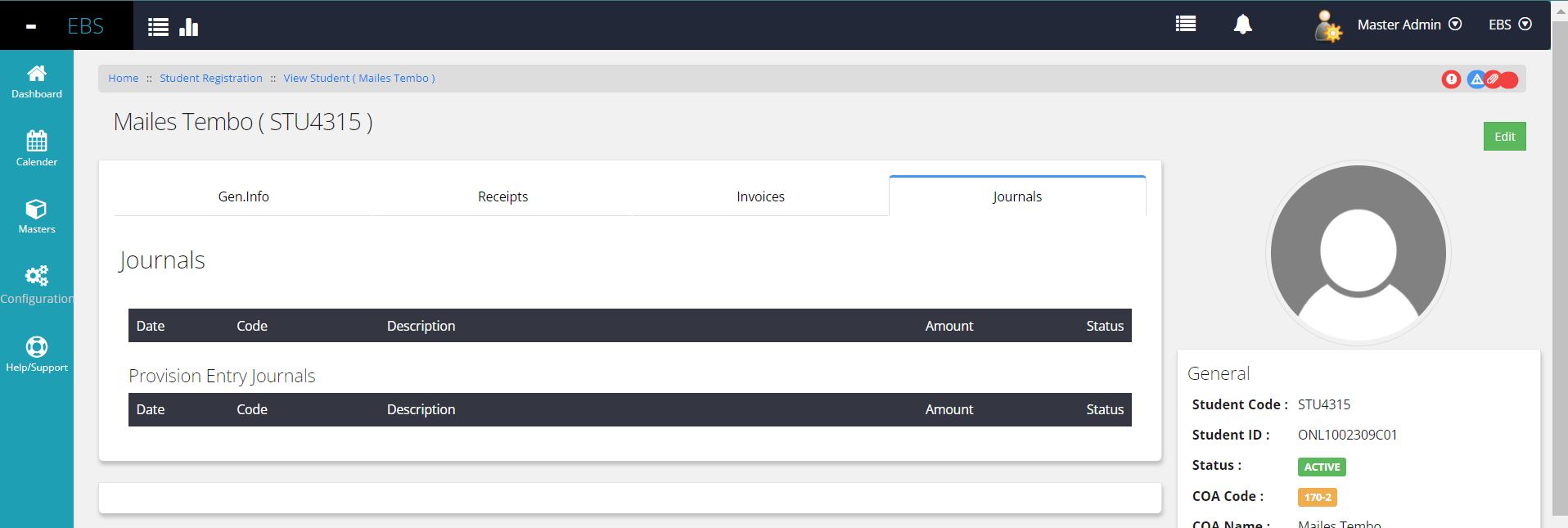
Student Basic Informations
The right panel of the page showcases essential basic information, encompassing key course-related details. Additionally, it displays contact information such as the student's physical address, mobile number, and phone number, offering quick access to important contact details.