Components of a Journal Entry:
Importance of Journal Entries:
- Forms the basis for all accounting records.
- Helps maintain accuracy and consistency in financial records.
- Essential for generating financial statements.
- Provides a trail of financial transactions for auditing and analysis purposes.
Overview:
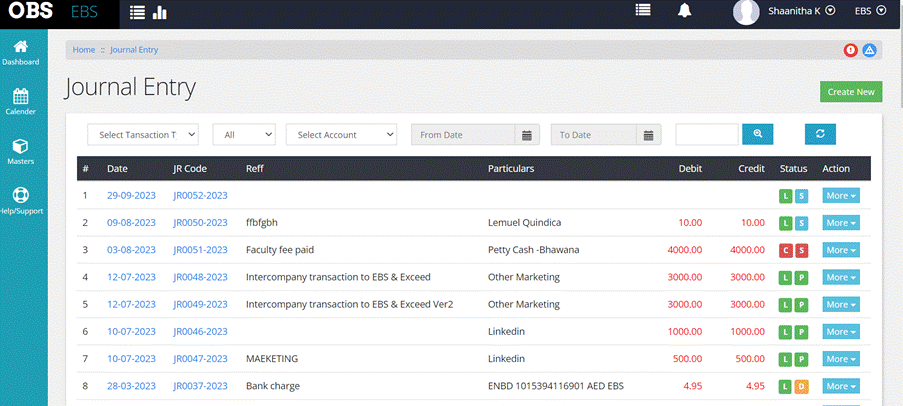
The Journal Entry Screen is an intuitive, table-formatted
interface allowing users to view, manage, and organize journal entries
effectively. Accessed by selecting ‘Journal’ from the Menu, users are
presented
with a variety of features designed to streamline navigation, editing,
approval, and management of entries.
- Fields:
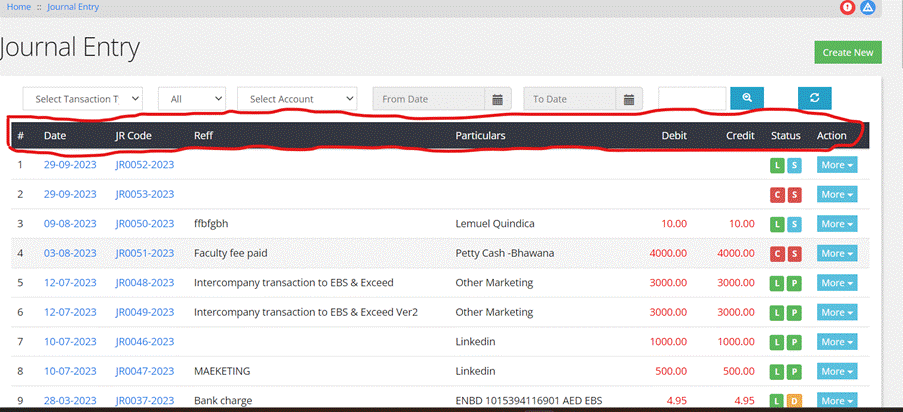
Upon clicking ‘Journal’ from the Menu, users are greeted
with a table containing the following fields:
- Date:
Indicates the date of the journal entry.
- Journal Code: A unique
identifier code for each entry.
- Reference:
Reference number or details associated with the entry.
- Particulars:
Descriptive details or notes for the entry.
- Debit: The debit
amount associated with the entry.
- Credit: The
credit amount related to the entry.
- Status: Indicates
the current state of the entry (e.g., Live, Saved, Cancelled,
Deleted)
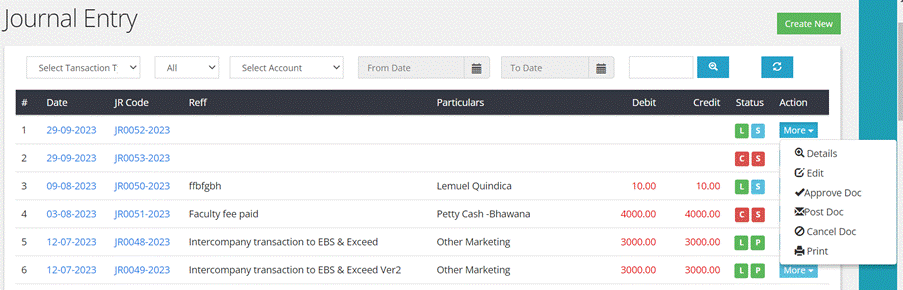
- Action: By
selecting more dropdown one could view the transaction, edit
details, approve, post, cancel and print document.
- Filters:
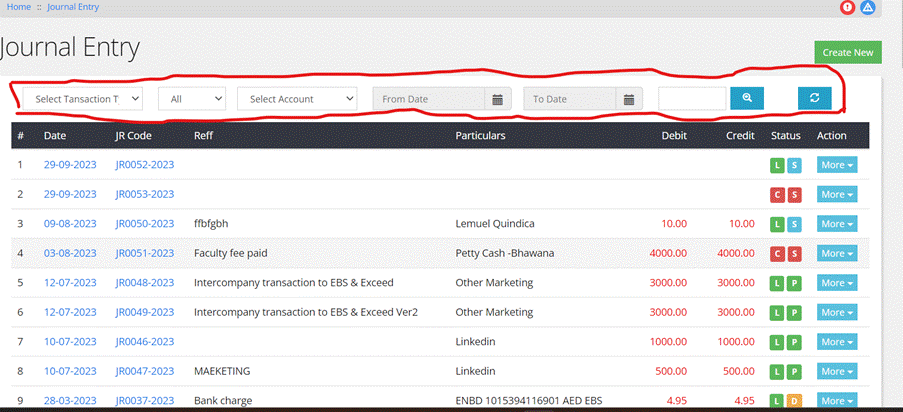
On the Journal Entry Screen, users can filter entries based
on:
- Type of Transaction: Allows
users to select and view specific types of transactions.
- Status: Can
select from posted and unposted transaction
- Account: Enables
filtering of entries associated with particular accounts.
- Period: Users
can specify a time frame to view entries from a particular period.
- More Actions:
|
Function |
Steps |
|
Edit |
|
|
Approving Document |
|
|
Posting Document |
|
|
Cancelling Entries |
|
|
Printing Document |
Users can print
journal entries by:
|
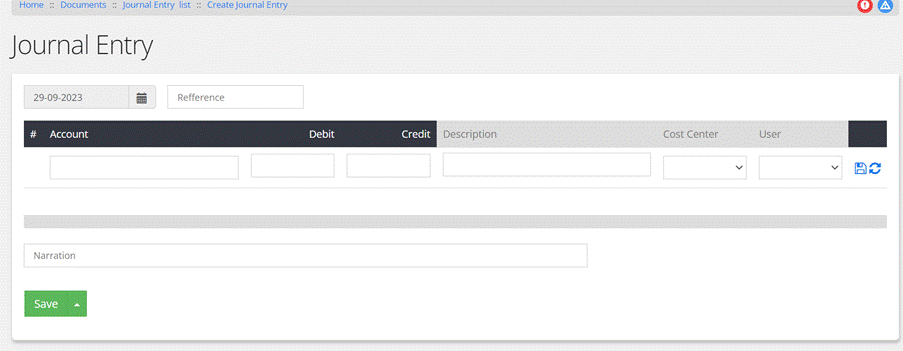
Step-by-Step Process:
1. Access Journal Entry Screen:
- Click on
‘Journal’ from the Menu.
- Press the ‘Create New’ button on the top left of the
screen to open the Journal Entry Screen.
2. Enter Account Information:
- Account: Begin
typing the account name in the provided field. The system will
display a dropdown with account names containing the typed words.
Select the appropriate account from the list.
- Debit Amount/Credit Amount: Enter the Debit or Credit amount corresponding to the
selected account.
- Description: Provide a
detailed description for the account entry.
3. Additional Entry Details:
- Cost Center: Choose
the relevant Cost Center from the dropdown menu.
- Created By: Select
the user who is creating the entry from the available options.
4. Save Individual Account Entry:
- Click on the ‘Save’ icon to save the individual account
entry.
- You can add multiple account details by repeating steps
2 to 4.
5. Validation:
- The system ensures that the total of all Debit amounts
is equal to the sum of all Credit amounts before allowing the user
to proceed.
6. Edit or Delete Account Entries:
- If needed, edit or delete individual account entries by
clicking the ‘Edit’ or ‘Delete’ icon respectively and making the
necessary adjustments.
7. Provide Narration:
- Enter a comprehensive narration for the journal entry
in the provided field at the bottom of the screen.
8. Save the Journal Entry:
- Click the ‘Save’ button at the bottom of the screen.
The system will create a Journal Voucher, assigning a unique voucher
number to the entry.
9.Confirmation:
Once saved, the system confirms the creation of the journal
entry, displaying the unique voucher number for reference and future
tracking.