User Guide: Bank Reconciliation Screen
Overview
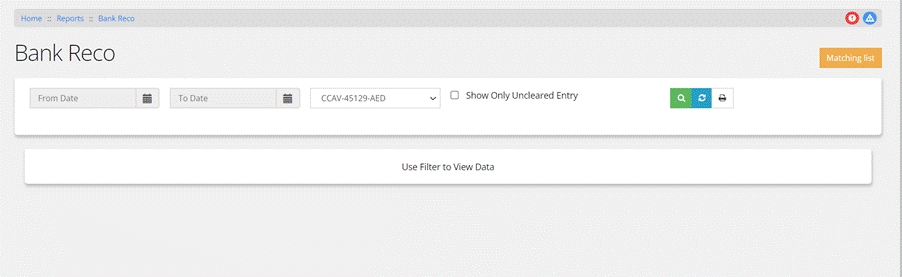
Bank reconciliation
screen provides a user-friendly interface to review and reconcile bank
account transactions, ensuring that the records match the bank's
records. Users can access the bank reconciliation screen from the
top-left menu.
- Filters
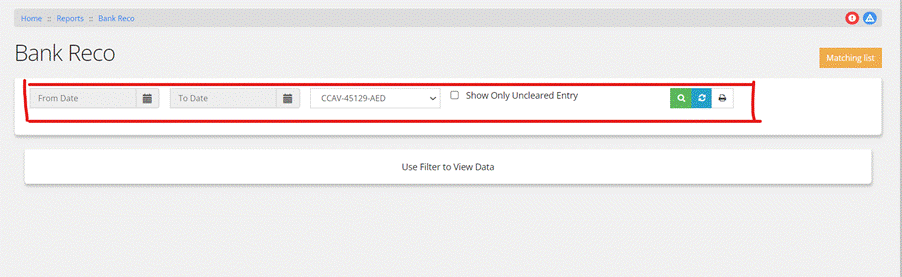
When the "Bank
Reconciliation" button is clicked, users are presented with various
filtering options to refine the data they want to view. These options
include:
· Date
Range: Users can
specify a range of dates for the transactions they want to reconcile.
· Bank
Account: Users can
select the bank account they want to reconcile from given list
· Option
to
Choose Uncleared Documents:
Users can opt to view only uncleared documents, which are transactions
that have not yet been reconciled.
· Print: Print document for
further use
2.Searching
Data:
After
entering the required filtering information and clicking the search
icon, the system retrieves and displays data for inward and outward
transactions. Opening balance for the particular bank is also shown.
Inward
Transactions
Inward transactions
refer to money coming into the bank account (e.g., deposits). The data
for inward transactions is further categorized into cleared cheques,
uncleared cheques and other transaction.

The information for
cleared and uncleared cheque is presented in a tabular form consisting
of following heads
· Document
Date: The date
when the transaction occurred.
· Document
Code: Reference
code for the transaction.
· Parties'
Name: The
name(s) of the parties involved in the transaction.
· Cheque
Number: The cheque
number associated with the transaction along with cheque date.
· Cleared
Date: In case of
cleared cheque cleared date is the date on which an uncleared cheque
is cleared or reconciled. In uncleared cheque user has option to
assign.
· Amount: The monetary value of
the transaction.
Totals amount for
cleared cheques, uncleared cheques and total amount of inward
transaction is also presented after each category.
Outward
Transaction
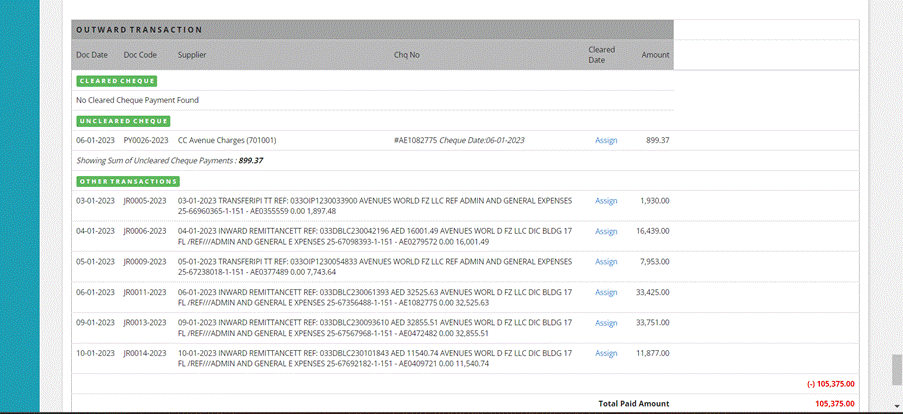
Outward
transactions refer to money leaving the bank account, which can
include payments to suppliers, withdrawals, and other types of
expenses or transfers. Similar
to inward transactions, outward transactions are further categorized
into the following:
· Cleared
Cheques:
Transactions that have been reconciled and cleared.
· Uncleared
Cheques:
Transactions that have not yet been reconciled.
· Other
Transactions: Any
additional types of outward transactions that may not involve cheques.
Data Presentation:
The
outward transaction data is presented in a table format, which include
the following columns:
· Document
Date: The date
when the outward transaction occurred.
· Document
Code: A unique
identifier or reference code for the transaction.
· Supplier: The name or details
of the supplier or recipient of the payment.
· Cheque
Number: The cheque
number associated with the transaction (if applicable).
· Cleared
Date: The date
on which a cheque or transaction is cleared, applicable for cleared
cheques.
· Amount: The monetary value of
the outward transaction.
Total Amounts:
The screen provides
totals for different categories of outward transactions:
- Total Cleared
Cheques: The
sum of all outward transactions that have been cleared and
reconciled.
- Total Uncleared
Cheques: The
sum of all outward transactions that are still pending
reconciliation.
- Total Paid Amount: The
sum of all outward transactions, whether cleared or uncleared.
Retain Option for
Cleared Cheques

1.Assess:
On the right side of
the screen, under cleared cheques, there is a "Retain" icon. Clicking
this icon triggers the retention of detailed information related to a
cleared cheque.
2.Pop-up Window:
When
the "Retain" icon is clicked, a pop-up window appears, displaying
information related to the cleared cheque. This pop-up window
typically contains the following details:
- Cheque
Date:
The date on which the cheque was issued.
- Cheque
Number:
The unique identifier for the cheque.
- Cheque
Amount:
The monetary value of the cheque.
3.Table with
Transaction Details:
Within the pop-up
window, there is a table that provides additional transaction details.
This table include columns such as:
- Date: The date of the
transaction.
- Description: A description of
the transaction, which include the parties' names involved. The
timestamp indicating when the transaction occurred.
- Transaction amount:
Amount of money involved in each transaction.
- Document amount: This could be
the total amount associated with the document or transaction.
- Other Allocation
Amount: Any
additional allocations related to transaction.
- Balance Amount: The balance
amount after each transaction.
4.Icons for Actions:
Towards the right side
of the pop-up window, there are typically two icons that allow users
to perform actions related to the cleared cheque:
- Close Icon: This icon allows
users to close the pop-up window.
- Retain Document
Icon:
Clicking this icon is to confirm the retention of the document,
which means that detailed information about the cleared cheque and
its associated transactions will be saved for reference.
Assign Option for
Uncleared Cheques
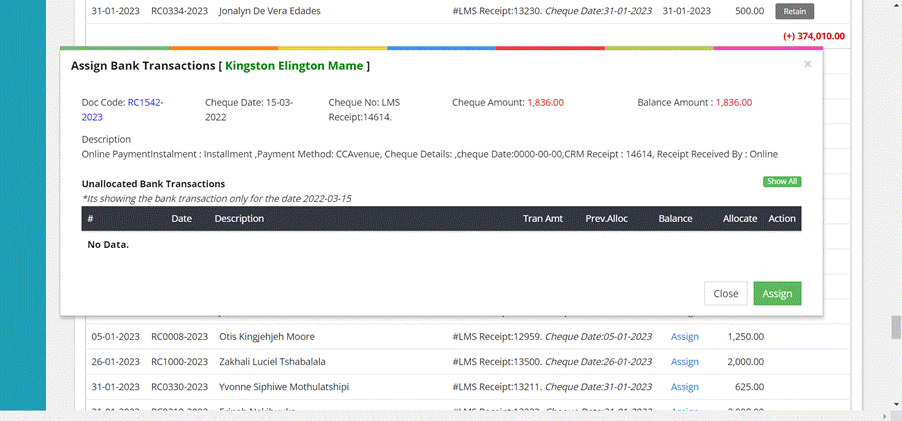
1.Assess:
Can
be
assessed from uncleared cheques in Bank reconciliation of the menu
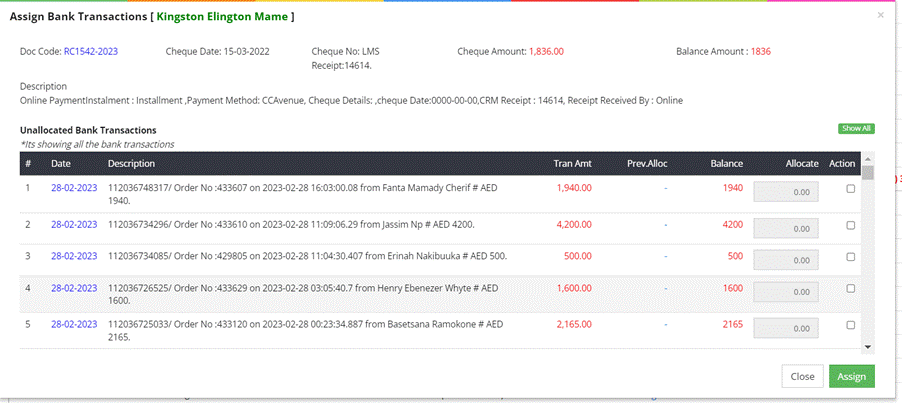
2. Pop-up
Content:
- Document Code: A unique
identifier or reference code for the document or transaction.
- Cheque Date: The date when the
cheque associated with the transaction was issued or processed.
- Cheque Number: The unique
identification number assigned to the cheque.
- Cheque Amount: The monetary
amount specified on the cheque.
- Balance Amount: The remaining
balance amount that needs to be allocated.
- Additional
Details:
It provides information about how the payment was made, such as
"Online Payment”, Indicates whether the payment was made in
installments specific bank account related to the transaction.
Additional information about the cheque, if available.
3.View
Unallocated Bank Transactions:
Users have the option
to either view unallocated bank transactions for a specific date or
click on a "Show All" icon to view a detailed list of unallocated bank
transactions. This provides flexibility in managing and allocating
funds.
4.
Unallocated
Bank Transaction Table:
· Date: The date of each
unallocated bank transaction.
· Description: A description that
provides more information about each transaction.
· Transaction
Amount: The
monetary value of each unallocated bank transaction.
· Previously
Allocated
Amount:
This may show any amount that was previously allocated to a
transaction, helping users track changes.
· Balance
Amount: The
remaining balance amount for each unallocated transaction.
· Allocate
Amount: Users can
input the amount they want to allocate to each transaction in this
column.
· Action: Users can choose to
use a small checkbox to allocate the entire cheque amount to a
specific transaction.
5.
Allocate
Amount:
Users can manually
allocate amounts by entering values in the "To Allocate Amount" column
or click on check box under action for each unallocated bank
transaction. As amounts are allocated, the balance amount decreases
accordingly.
6. Close and Assign
Icons
· Close
Icon: This icon
likely allows users to exit the pop-up.
· Assign
Icon: Clicking
this icon confirms the user's intention to assign the allocated
amounts to the uncleared cheque and saves the changes.
3.Book Summary

The "Book Summary"
section at the bottom of the bank reconciliation screen provides a
concise summary of key financial information related to the bank
account being reconciled. It helps users quickly assess whether their
accounting records align with the bank's records
· Opening
Balance: This is
the balance of the bank account at the beginning of the reconciliation
period. It reflects the amount of money in the account before any of
the transactions included in the reconciliation process occurred.
· Total
Inward
Transaction:
This represents the sum of all inward transactions, which include
deposits and any other money received into the bank account during the
reconciliation period.
· Total
Outward
Transaction:
This is the total of all outward transactions, including payments,
withdrawals, and other deductions from the bank account during the
reconciliation period.
· Closing
Balance: The
closing balance is the balance of the bank account at the end of the
reconciliation period. It is calculated by adding the opening balance
to the total inward transactions and subtracting the total outward
transactions.
· Stated
Bank
Balance: This is
the balance reported by the bank in its statement for the same period.
It represents the bank's view of the account's balance, which may
include transactions that haven't yet been recorded in your accounting
system.
· Difference: The difference
between the closing balance and the stated bank balance indicates the
variance or discrepancy between your records and the bank's records.
If these two balances match, the difference should be zero. However,
if there are discrepancies, it may indicate errors or missing
transactions that need further investigation and correction.