Debit Note
A debit note is a document used in financial
accounting that indicates a vendor's claim for payment from a buyer.
It's issued by the seller to inform the buyer about a debit entry made
in the buyer's account due to various reasons, such as:1. Return of Goods : If the buyer returns goods to the seller, the seller issues a debit note to the buyer for the amount to be debited in the buyer's account.
2. Shortage in Goods Received : If the quantity of goods received by the buyer is less than what was initially invoiced, the seller might issue a debit note for the shortfall amount.
3. Additional Charges : In case there are additional expenses or charges not included in the original invoice (like freight charges or taxes), a debit note can be issued to record those extra costs.
4. Corrections in Invoices : If there's an error in the original invoice (overbilling, incorrect pricing, etc.), a debit note is issued to rectify the mistake.
Essentially, a debit note serves as a formal request for the buyer to pay the outstanding amount or to adjust the discrepancies in the financial transactions between the buyer and seller. It contains details such as the reason for issuance, the amount to be debited, date, reference numbers, and other relevant information.Debit Note Listing Page
Debit
Note Listing Page
This page displays a list of all Debit Notes in the system.
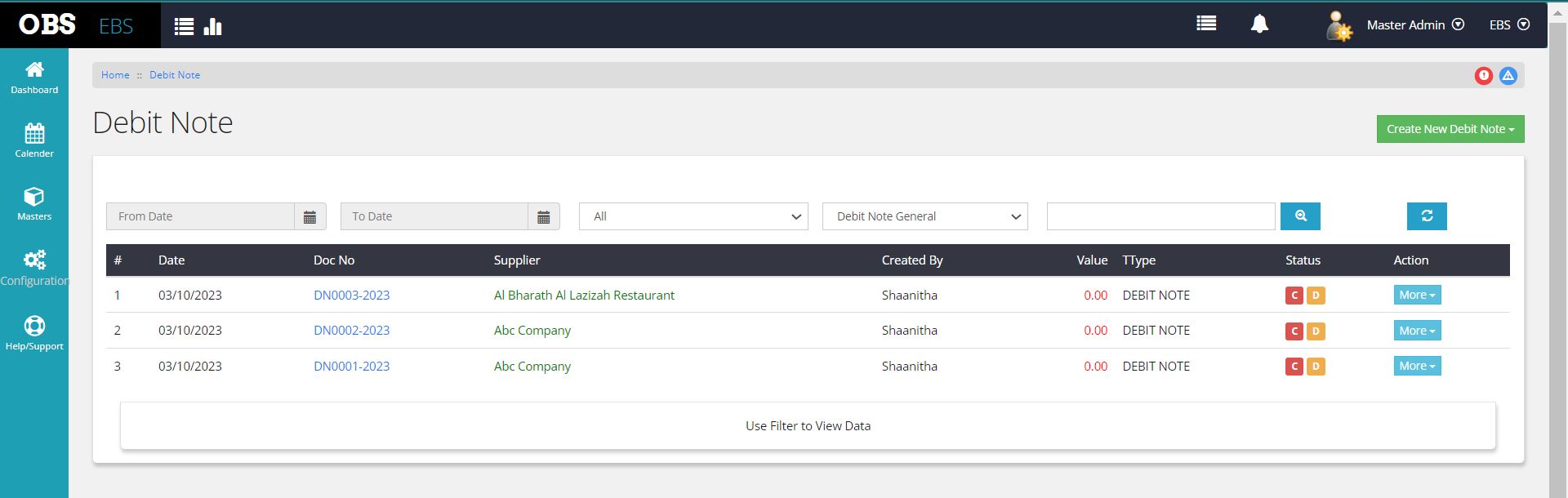 The
Debit Note Listing page is equipped with a comprehensive set of filter
options allowing users to refine their search. They can choose to
filter by Date Range, selecting whether the Debit Note has been Posted
or Not Posted, and categorize by the Type of Debit Note. Upon setting
the preferred criteria, users can click the 'Search' button to load the
grid below with the corresponding data.
The
Debit Note Listing page is equipped with a comprehensive set of filter
options allowing users to refine their search. They can choose to
filter by Date Range, selecting whether the Debit Note has been Posted
or Not Posted, and categorize by the Type of Debit Note. Upon setting
the preferred criteria, users can click the 'Search' button to load the
grid below with the corresponding data.Additionally, a versatile search box is available, enabling users to search for specific details such as Customer Name, Date, Document Code, or any other relevant information within the listed Debit Notes.
Debit Note Status
The Debit Note document status is represented by two main states: 'Cancelled' and 'Live', denoted by 'C' and 'L', respectively. Additionally, there's an another status to indicate the current position within the document lifecycle. This status includes 'Draft' marked as 'D', 'Save' as 'S', and 'Posted' as 'P'. These shorthand codes - 'D', 'S', and 'P' - signify the current stage of the document, assisting users in identifying the document's status at a glance.
Action button
The action button on the Debit Note listing page presents users with two distinct options: 'Details' and 'Print'. Clicking the 'Details' link directs users to an inner page dedicated to the specific document, providing a comprehensive view of its contents and details.
Alternatively, selecting the 'Print' option instantly loads a printer-friendly page, optimized for printing purposes. This page layout ensures that the document's content is presented in a format suitable for easy printing without unnecessary elements, making it convenient for physical documentation or archiving purposes.
New & Edit Document
Users
have the ability to create new debit notes directly from the Listing
page, facilitated by a prominent Green Button located on the top
right-hand corner. Upon selection, users are directed to the
appropriate document type on the subsequent page.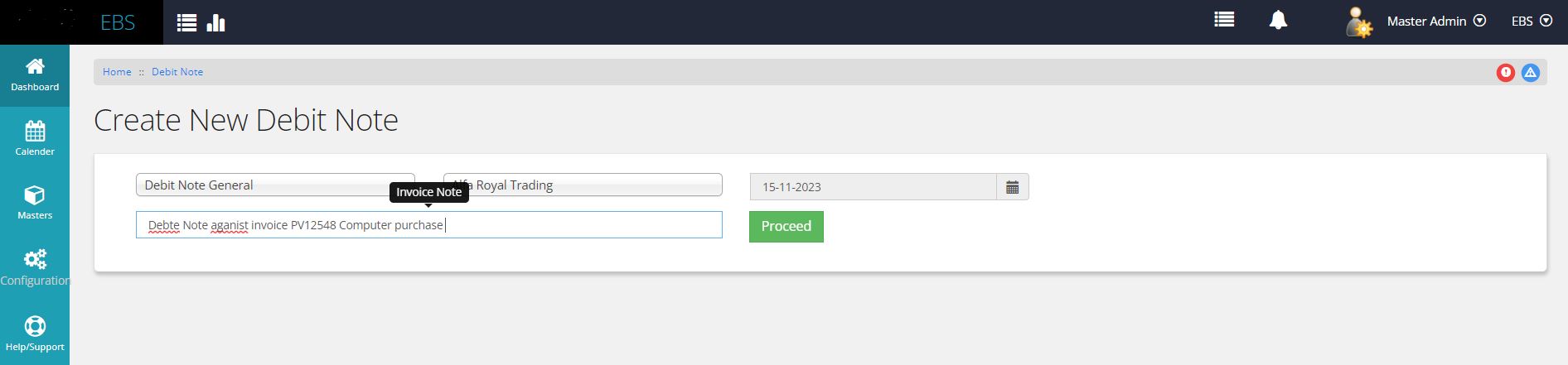
In the initial stage, users are prompted to input primary information such as customer/supplier details, the document's date, and a concise note. This brief note serves as a succinct reference on the document itself, appearing as a small, descriptive remark.
Understood! Here's a refined version:
The selection of Supplier/Customer and date fields is mandatory. Once users have provided these essential details, they are required to click the 'Proceed' button to advance further in the document creation process.

After proceeding, users can input or select various fields including Description, Expense Invoice documents, Debit Note amount, and Tax value. Additionally, users can dynamically select invoice numbers by clicking the [+] button adjacent to the Doc No field. This action opens a list where users can search and choose the relevant invoice. Upon selecting a Reference document, the document amount and date are automatically populated in the respective grid columns.
The Debit Note grid's value should not exceed the selected Reference document's value. After ensuring accuracy, users can click a Save icon provided at the right end of the grid line. If the entry is valid, the line item is saved, allowing users to proceed to the next blank entry line. This process can be repeated for multiple transaction entries.
Beneath the grid, an option is available to include remarks about the document, aiding future references.
Save & Postting of document
Once entries are completed, users can save the document by clicking the 'Save' button located below the column. Users with appropriate rights can also 'Save & Post' the document using the same button selection.
Furthermore, users can post the document from the View Document area if they have the necessary permissions assigned.
Voucher View
To view the Finance Entry Voucher, accountants can access it by clicking the button positioned on the top right side of the document. This provides insight into the entry's financial impact within the organization's financial documents.
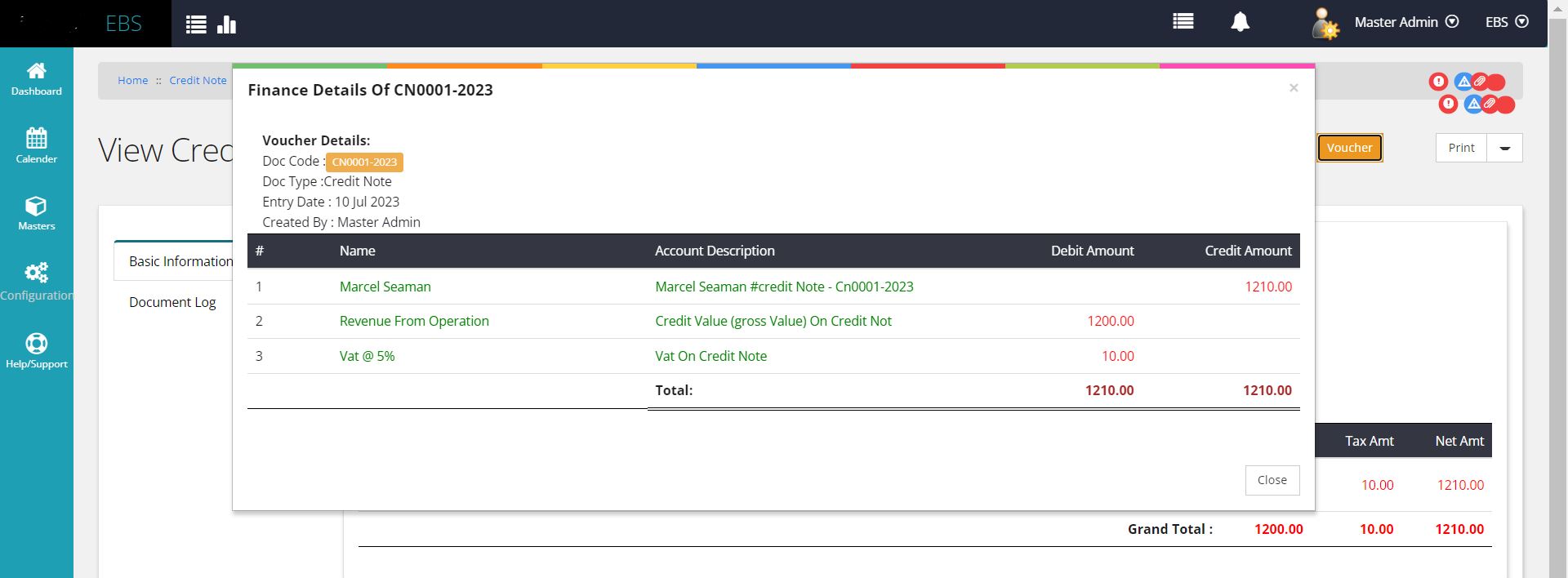
Editing the document
Document is avaiable for edit only if its not posted, if document is posted first proceed with unposting the document, which is again a process flow which check for possible intagrity checks.Once the document is open for editing the same procedure flow is applicable